
Buying guide
How to buy on iTaoBuy
Follow a Weidian product from the iTaoBuy Spreadsheet to the official agent. The screenshots show real search, product, QC and freight screens, so you can see where to click and what to verify.
1. Find the Weidian item in the spreadsheet
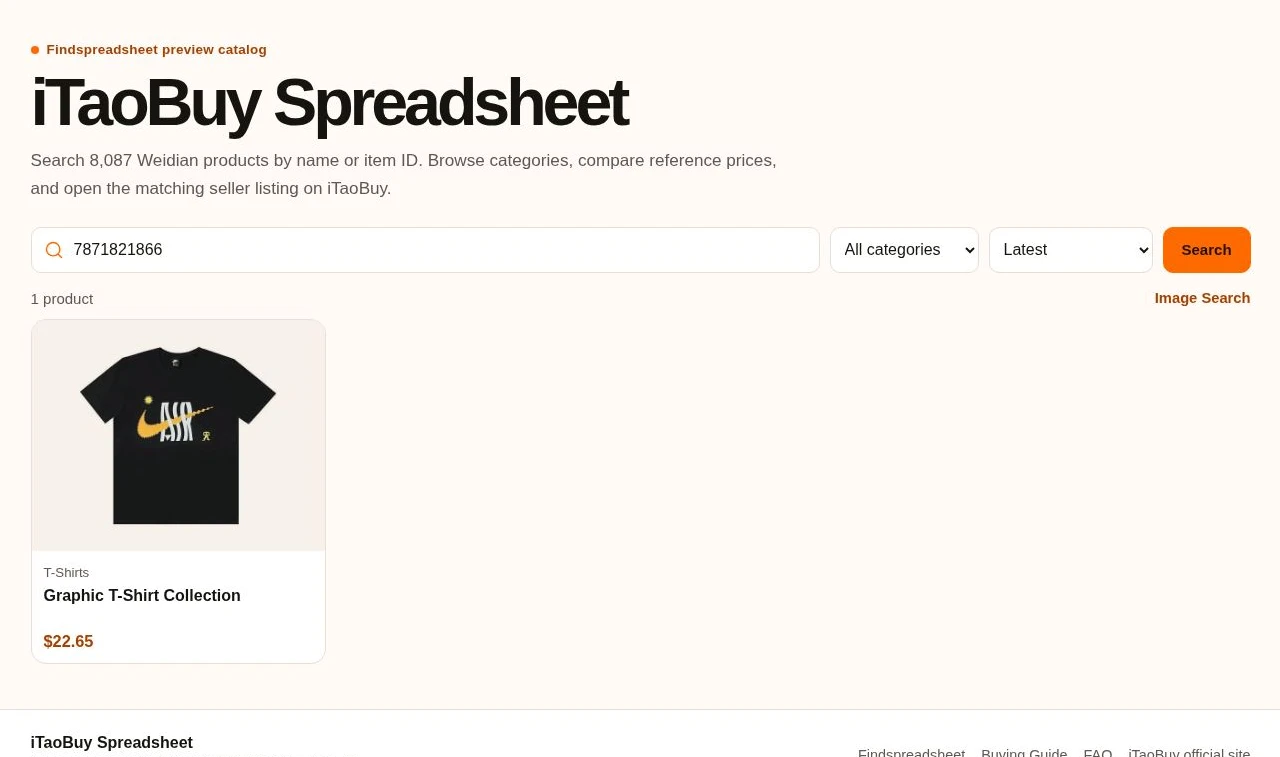
Open the iTaoBuy Spreadsheet and type a product name or Weidian item ID. Use the category selector to narrow the list and price sorting to compare results. If you only have a reference photo, use Image Search and confirm promising matches by their product photos and original item ID.
To follow the example, enter 7871821866, then click Search. Wait for 1 product and open Graphic T-Shirt Collection. The item ID shown on the detail page should still be 7871821866.
2. Inspect seller photos, style and size
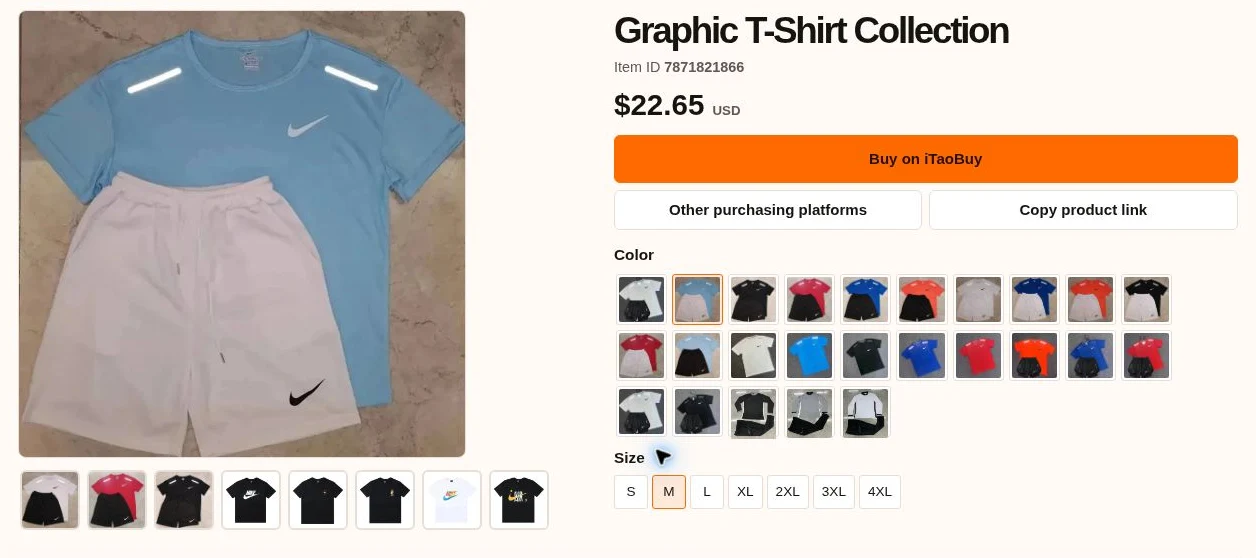
Select a thumbnail below the main photo to see it at full size. Scroll or swipe the row sideways to see more seller photos. Under Color, click Blue suit. Check that the main photo changes to the blue outfit and that the tile is selected. Then click M only as an example. On the official listing, choose the size that matches your actual measurements.
Use Original Weidian listing or View on Findspreadsheet below the Warehouse QC section to verify the source. Copy product link copies the original Weidian URL. The top currency button changes displayed reference amounts for comparison.
3. Compare warehouse QC when available
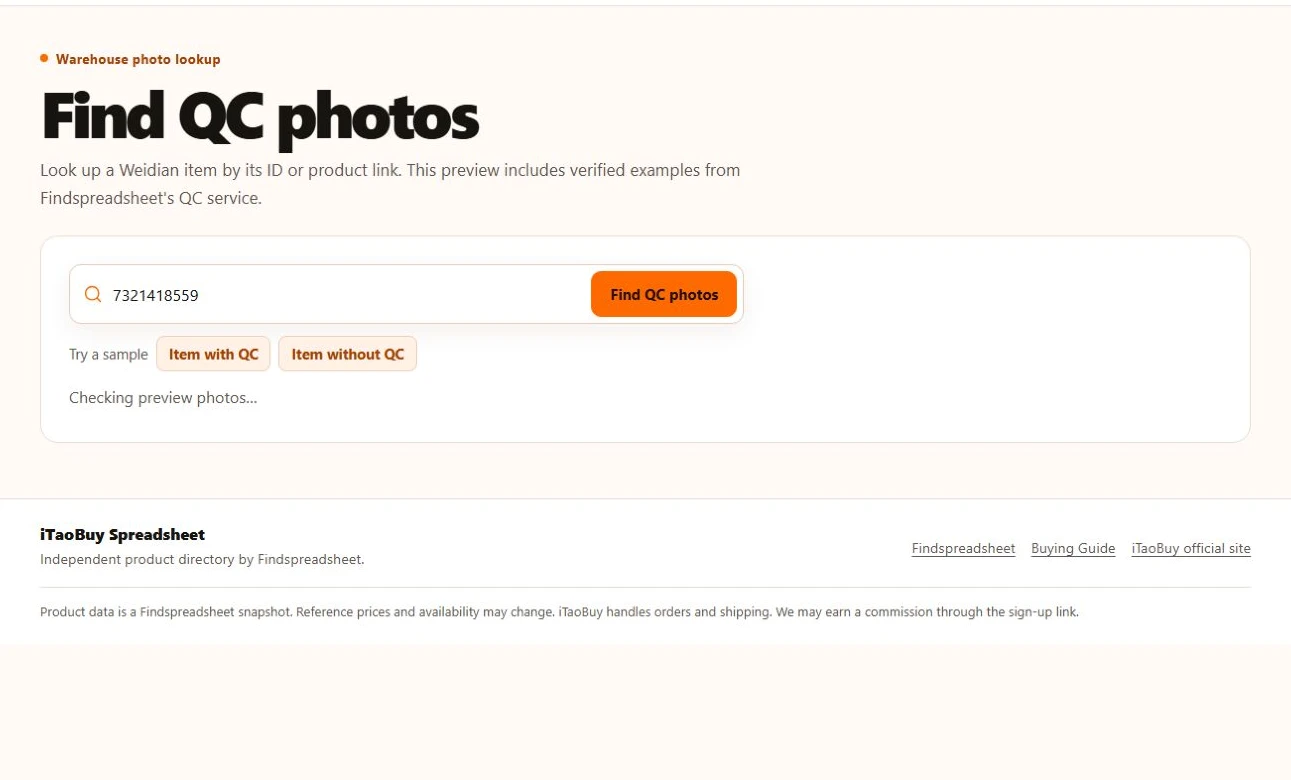
The product gallery contains seller photos. Warehouse QC appears in a separate section. Open the QC finder and enter a Weidian item ID or original listing URL to check the preview records. Try the separate QC example by entering 7321418559 and pressing Check QC. Look for 12 warehouse QC photos, then open a thumbnail. Those photos belong to the QC example item.
Compare the exact listing and variant and look at the details that matter for your item, such as fabric, print placement, seams, hardware, shoe shape or labels. If a photo from the preview is missing or shows another variant, verify your own unit after it arrives at the iTaoBuy warehouse.
4. Open the matching listing and place the official order
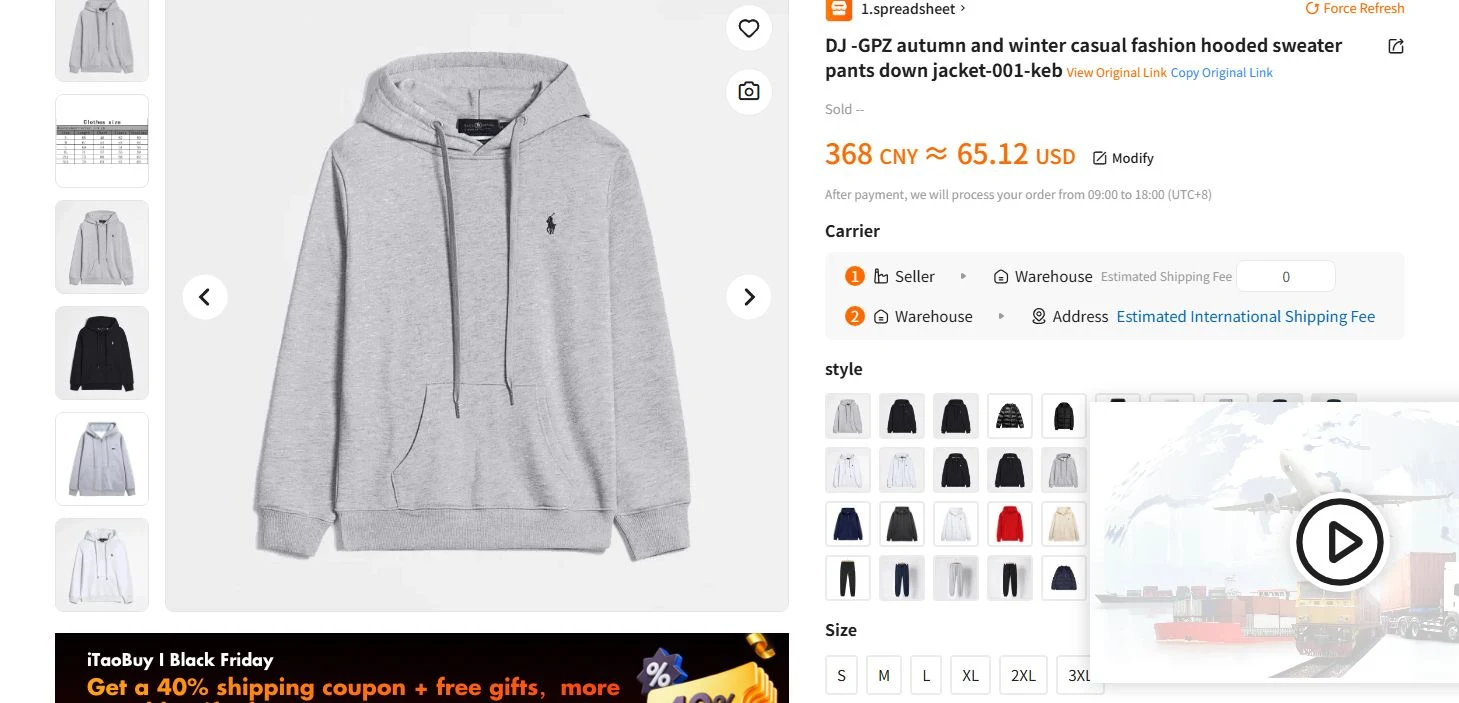
On the product page, choose Buy on iTaoBuy. The button opens the original Weidian URL inside iTaoBuy. If you already have a different seller link, paste it into the search box on the official website. If the listing needs manual entry, the official header provides Fill&Buy.
Sign in to your existing iTaoBuy account, or use Join iTaoBuy to register. Compare the live product title, image, size, color, quantity and stock. Review the item total, any domestic delivery charge and applicable fees before paying in the official interface.
Open the example Weidian product in iTaoBuy. Check the embedded Weidian item ID, choose the color and size again in iTaoBuy, and set quantity to 1 for a single item. In the verified example, ¥128 is about $22.65 before shipping. Check the current amount before placing the order.
5. Review the item after warehouse intake
The seller first sends the product to the iTaoBuy warehouse in China. Check your iTaoBuy order when it reaches warehouse processing. Review the available inspection photos against the selected SKU, size and color. If something looks wrong, open the relevant order’s support or after-sales options promptly, before submitting the parcel for international shipping.
If several items have arrived, use the warehouse to select the items eligible for a combined parcel. Before confirming the parcel, compare the selected item count with the order records. Check which items are ready and which routes can handle the contents. Use the official Help Center for current terms and support.
6. Use iTaoBuy Estimation and submit a parcel
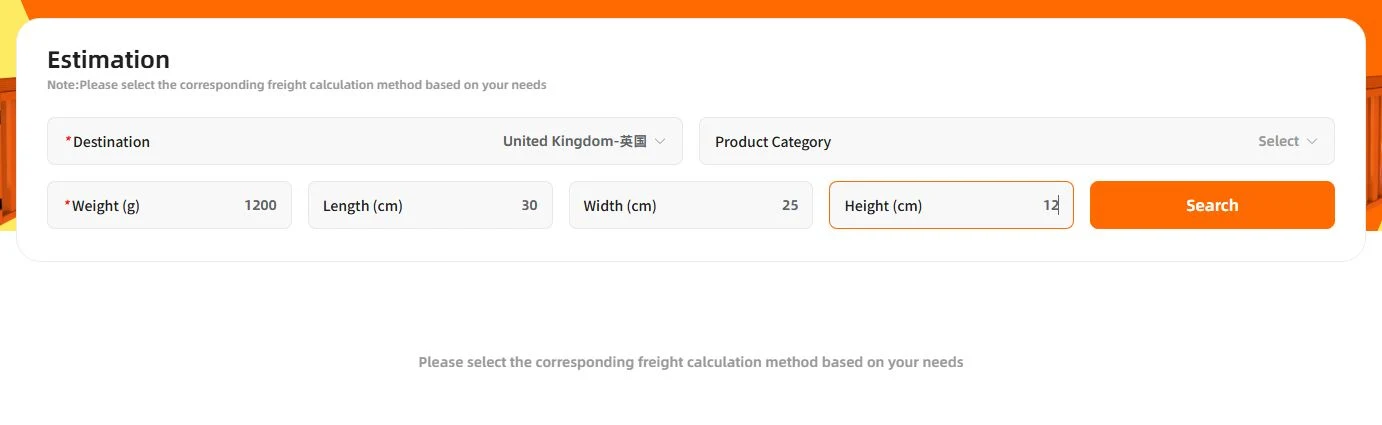
Open iTaoBuy Estimation and select your destination. Enter the packed weight in grams, fill in the product category where applicable, and add length, width and height in centimeters when known. To repeat the screenshot, choose United Kingdom, enter 1,200 g and 30 × 25 × 12 cm, then click Search. The result should show routes available for those inputs. Compare each route’s estimated charge, billing basis and delivery window using the same inputs.
Read each route’s billing basis, applicable restrictions and transit estimate. Check whether the quote uses actual or volumetric weight and whether any additional fees apply. Final freight can change after the parcel is packed and measured. On the official parcel page, confirm the chosen items, address, packaging, route and international shipping charge before paying.
7. Track your parcel and keep the order details
After dispatch, open the parcel record in your iTaoBuy account to find the tracking number and latest scan. Confirm that the tracking number belongs to the same parcel and check the date of the latest carrier update. Keep the order ID, parcel ID and tracking reference handy. If you need help, share the relevant record with iTaoBuy support through its official channels.
Before paying
- Match the original product ID and seller listing.
- Check the live SKU, measurements and quantity.
- Review domestic delivery, international freight and final checkout currency separately.
- Inspect your warehouse photos before submitting a parcel.